GeForce Now for Developers
Codespaces – programming in the cloud

Ah, how nice it is sometimes to spend some time writing code. Although it’s just work, for many of us programming is also a great escape from everyday worries. It trains our minds, helps organize thoughts, solves real problems, but above all, it’s incredibly enjoyable. Usually, when working on a project, you need to prepare your environment, install the right compilers, and get your hardware ready. But what if you had all of this instantly - on a remote server in the cloud?
tl;dr
- There are many cloud tools we can use across multiple devices
- Github Codespaces is a programming tool
- It creates an IDE similar to “Visual Studio Code” for a selected GitHub repository
- It allows adding configuration in the repository to define which tools should be installed
- You can run tests, servers, applications, and even GUI
- You can connect Docker with your working environment
Why is this needed?
When working on various projects, I usually use multiple devices. A work computer, a personal computer, or a smartphone. Each serves a different purpose, so I use them in different situations. Most services I use are accessible from any device - via dedicated apps or directly in the browser.
Others have it better…
The development of tools like Google docs has made it possible to access documents or presentations from virtually anywhere. We can continue working at any time on another device. It doesn’t matter whether it’s an old computer, a tablet, or a small smartphone screen. You just open a browser and continue working.
The idea of cloud software has become so widespread that dedicated services for gaming have also appeared (e.g., GeForce Now or the now-defunct Stadia). The gameplay happens on a remote machine accessible from almost anywhere. Of course, for something as complex as a video game - with rapidly changing visuals - you need fast and stable internet. Still, it’s an alternative to investing in more powerful hardware or simply a way to play more demanding games on your smartphone.
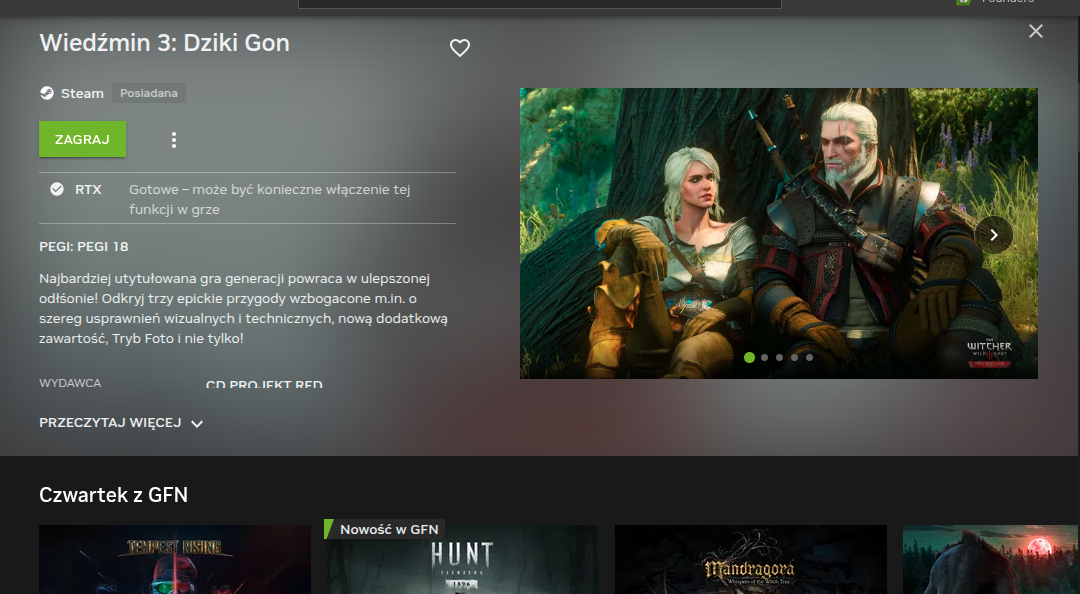
Maybe let's play The Witcher on my old computer
We could probably find more examples of cloud tools for accountants, plumbers, or hairdressers - professions I’m less familiar with - but which also benefit from cloud-based work. However, I’ll focus on a service dedicated to developers.
Why we run IDE on the cloud?
Let’s take a look at a tool available to GitHub users, as it is one of the most popular platforms for code management. I do most of my projects there, so I’m most familiar with it.
It’s worth mentioning that GitHub includes a built-in editor that allows making changes to the code when needed. In urgent situations, it’s sufficient and can even save the day (assuming automated deployment), but implementing more complex features this way is difficult.
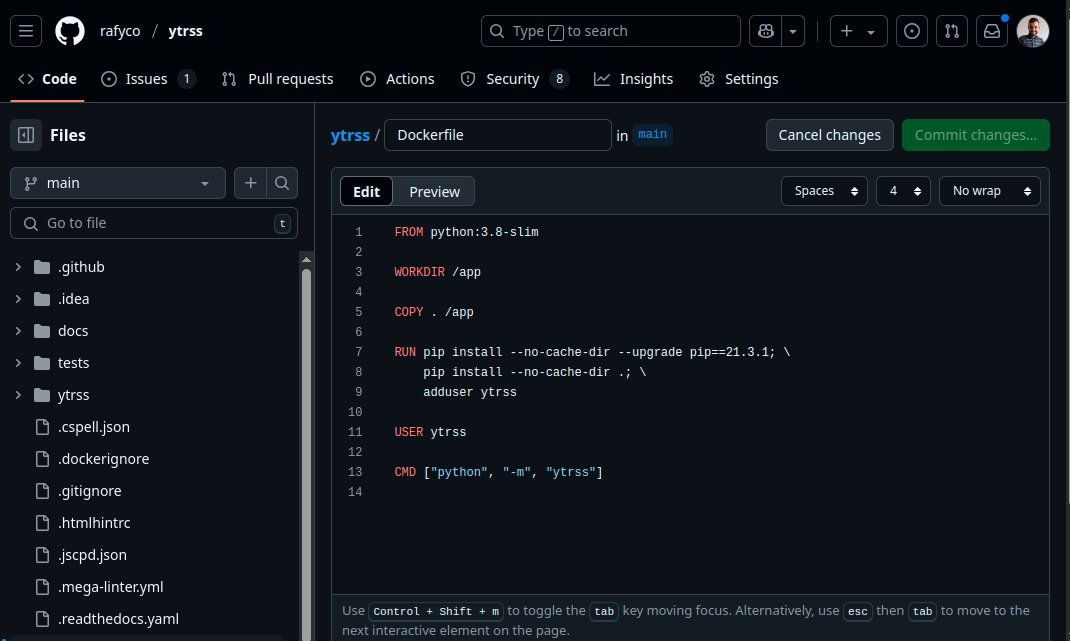
The built-in GitHub editor is simple but gets the job done.
The built-in editor lacks the ability to edit multiple files simultaneously, run programs, or use code analysis tools. It’s also hard to continue work started elsewhere without committing changes. In short, a proper tool would be helpful.
To address this, GitHub introduced a tool called Codespaces. It allows creating virtual instances of development environments with their own workspace and terminal access. This enables testing applications, running linters, and even launching full projects in a browser. With port forwarding, you can also run more complex applications like servers or GUI apps (example here).
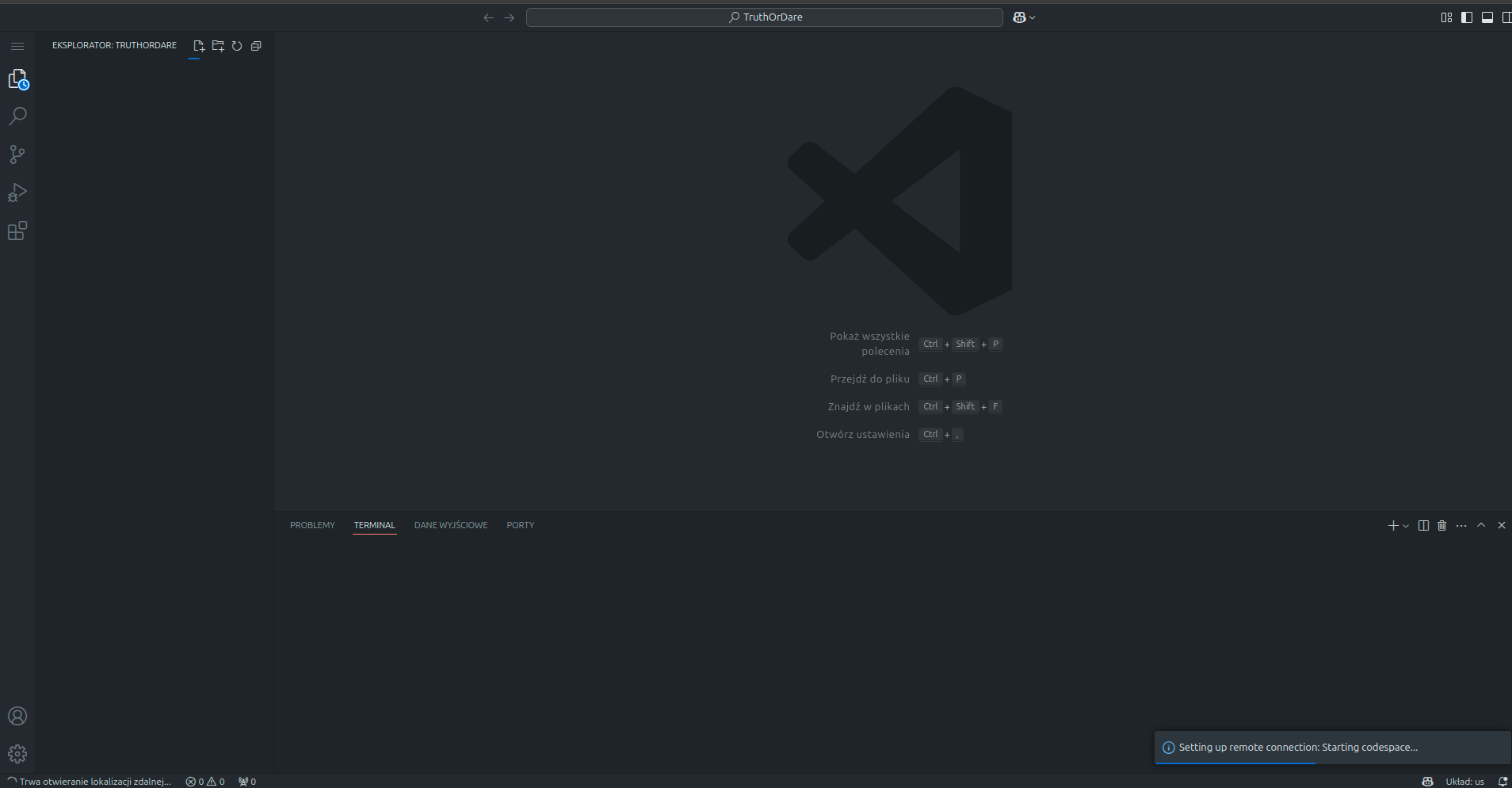
The IDE looks like Visual Studio Code, which is great—no need to relearn anything.
Getting started
Launching your first development environment on the platform is quite simple. You don’t need advanced knowledge to start coding. Everything begins with selecting a repository to work on.
First launch
To create your project in a remote environment, simply go to the codespaces page.
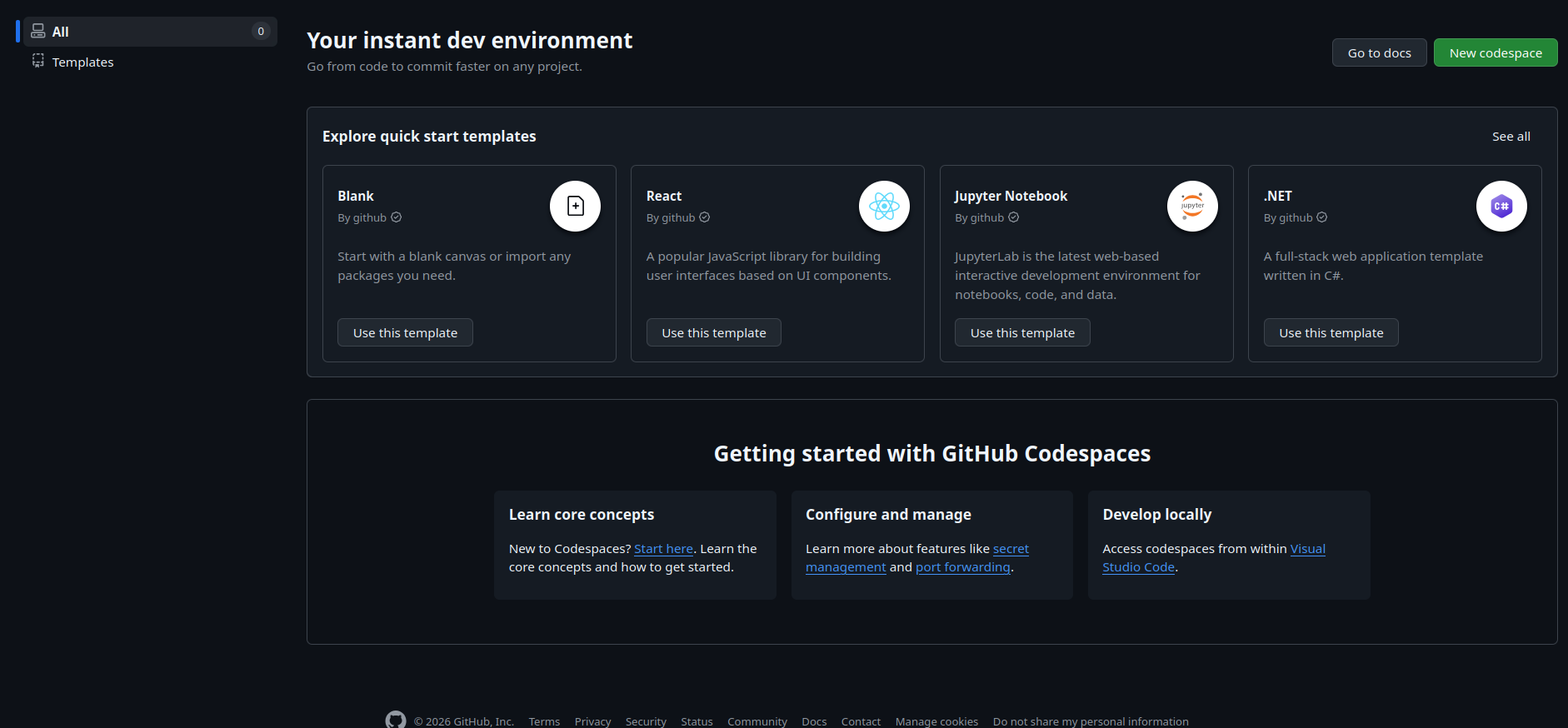
First Codespaces launch
- Click the
New codespacebutton
- Configure the environment. Choose the repository, branch (can be changed later), and machine parameters.
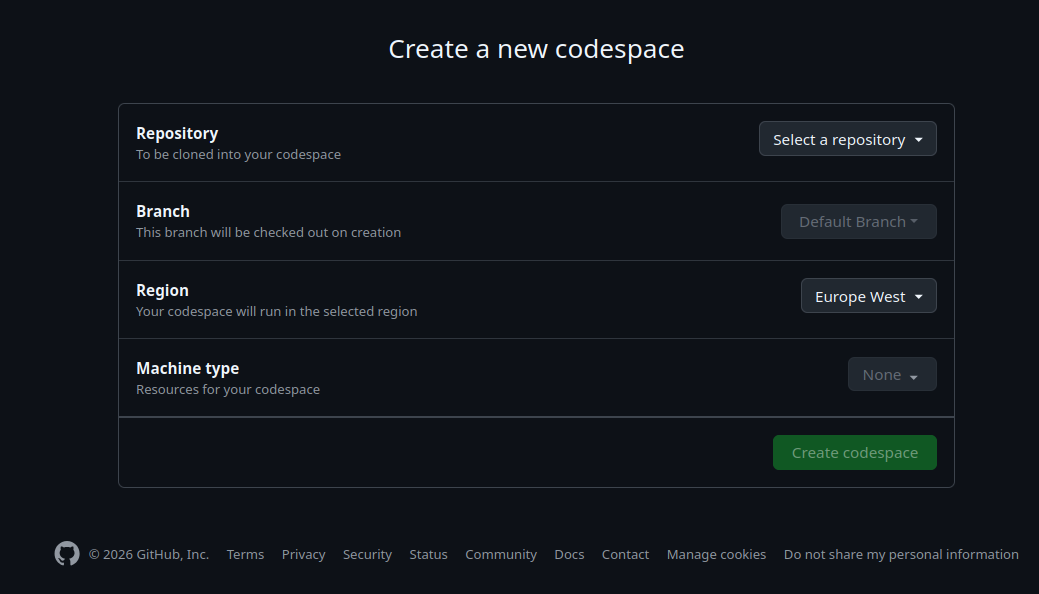
Set appropriate environment parameters.
- Click
Create codespaceand wait for it to start
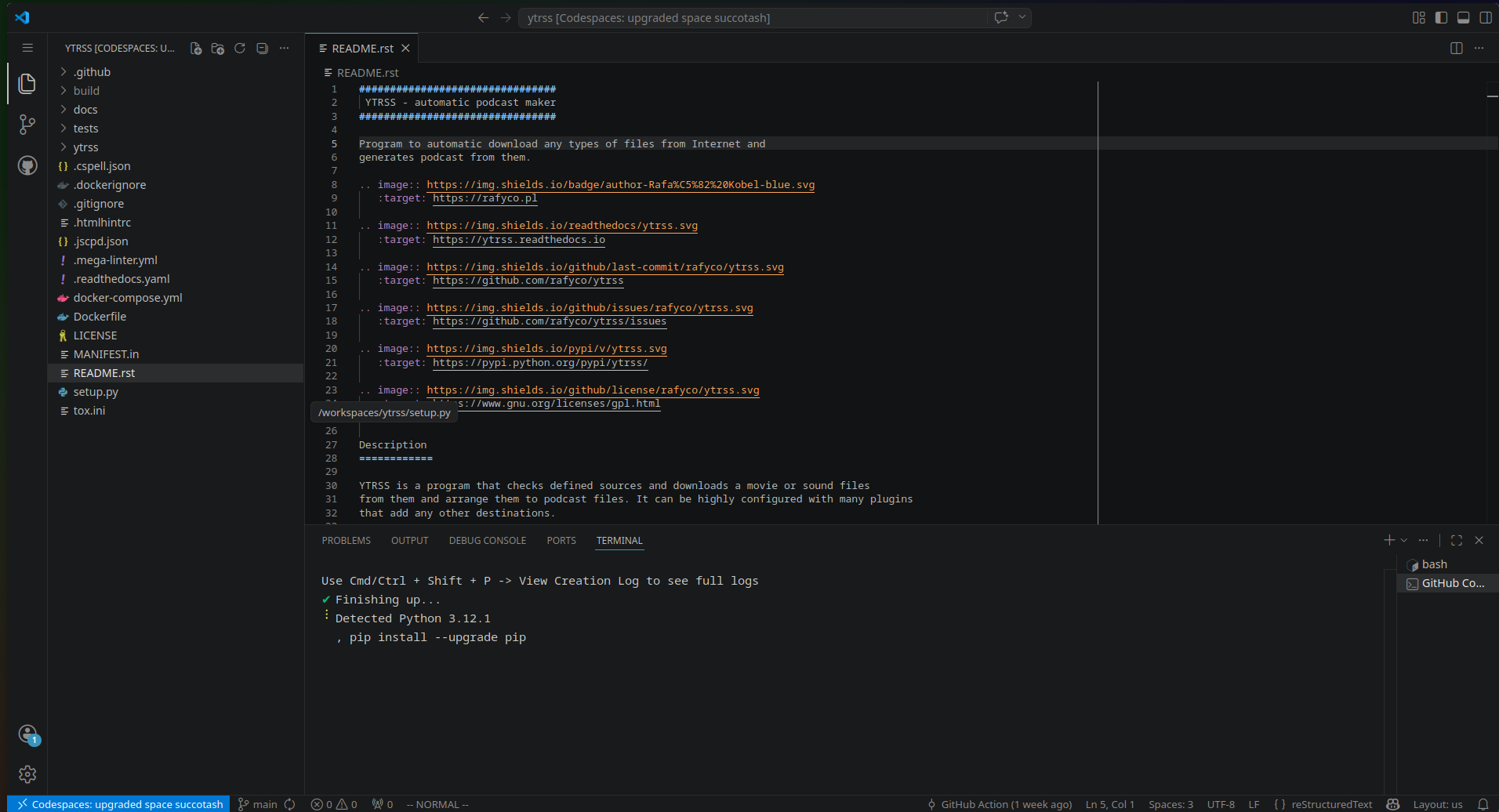
After creating the space, you can start coding immediately.
After selecting the options, a VS Code IDE will launch where you can edit your code.
Environment configuration in the repository
Sometimes you may need a specific IDE configuration for a project. You can store it in the repository so it loads automatically when creating the environment. This ensures fast and repeatable setup.
This requires creating a configuration file that defines what should happen when the editor is launched. For example, you can install compilers and define required VS Code plugins.
DevContainer
The service uses a tool called devcontainer, which you can read about here. It creates a dedicated containerized environment for managing code.
Configuration is stored in the repository as .devcontainer/devcontainer.json.
Example:
{
  "image": "mcr.microsoft.com/devcontainers/typescript-node",
  "forwardPorts": [3000],
  "postCreateCommand": "bash .devcontainer/install.sh",
  "customizations": {
    "vscode": {
      "extensions": ["streetsidesoftware.code-spell-checker"]
    }
  }
}
This includes the Docker image, application port, and a list of plugins to install.
forwardPort
Codespaces allows not only editing but also running code. This is especially useful for web apps or servers running on specific ports. The environment exposes these ports via the browser.
pre- and post-create commands
You can also run scripts after container creation. For example, the install.sh script defined in postCreateCommand can install additional dependencies.
Docker integration
Microsoft provides many ready-to-use images. But what if you already have your own containers?
You can use them if your repository contains a Dockerfile:
"build": {
    "dockerfile": "./Dockerfile",
    "context": ".."
},
This builds the image during environment creation. Remember to rebuild the container manually after changes.
The downside is the lack of preinstalled tools available in default images. Tools like vim or grep must be installed manually.
Is it worth it?
It’s definitely a good option for mature projects. A well-configured devcontainer allows fast development even if the original environment is no longer maintained.
For new projects, the decision is more complex. Frequent use may exceed free limits. Also, resource-heavy applications like games may not run efficiently.
The biggest advantage is portability. With internet access, you can work anytime, anywhere - whether on a powerful PC or an old smartphone.
Advantages
- ✅ Fast setup – Once configured, environments can be quickly launched by any team member
- ✅ Consistent environments – Your code runs the same way every time
- ✅ Works on weak hardware – Any device with a browser is enough
- ✅ VS Code plugins support – Most extensions work
Disadvantages
- ❌ Monthly limits – Free usage is limited, though sufficient for hobby projects
- ❌ Requires internet connection – Without it, you can’t run your code
References
- https://github.com/codespaces - Github Codespaces homepage
- https://docs.github.com/en/codespaces - Project documentation
- https://code.visualstudio.com/docs/devcontainers/containers - Devcontainer documentation
- https://dev.to/konmaz/gui-in-github-codespaces-jl0 - Example of running GUI apps in Codespaces